

Your Discord has more channels than anyone can read.
Modem reads the channels you connect and turns them into one prioritized list of what people asked for. Nothing stays buried in #general.
How Modem works in Discord
An admin adds the Modem bot to your server and turns on the channels it should read. From there it works in the channels themselves, and everything it reads shows up in Modem.
You choose the channels
Nothing is read until an admin turns a channel on, and you can change the list whenever you want.
@Modem what shipped this week?
Export timeouts shipped in v2.42. 23 people asked.
The answer goes back to the channel
Ask @Modem in a thread and it answers there. When a fix lands, it can write a reply for the channel where the request was raised when you ask, so the loop can close in Discord.


Your community, next to everything else
Discord lands in the same pipeline as Slack, Zendesk, email, and your call transcripts. One request, not two.
What those conversations turn into
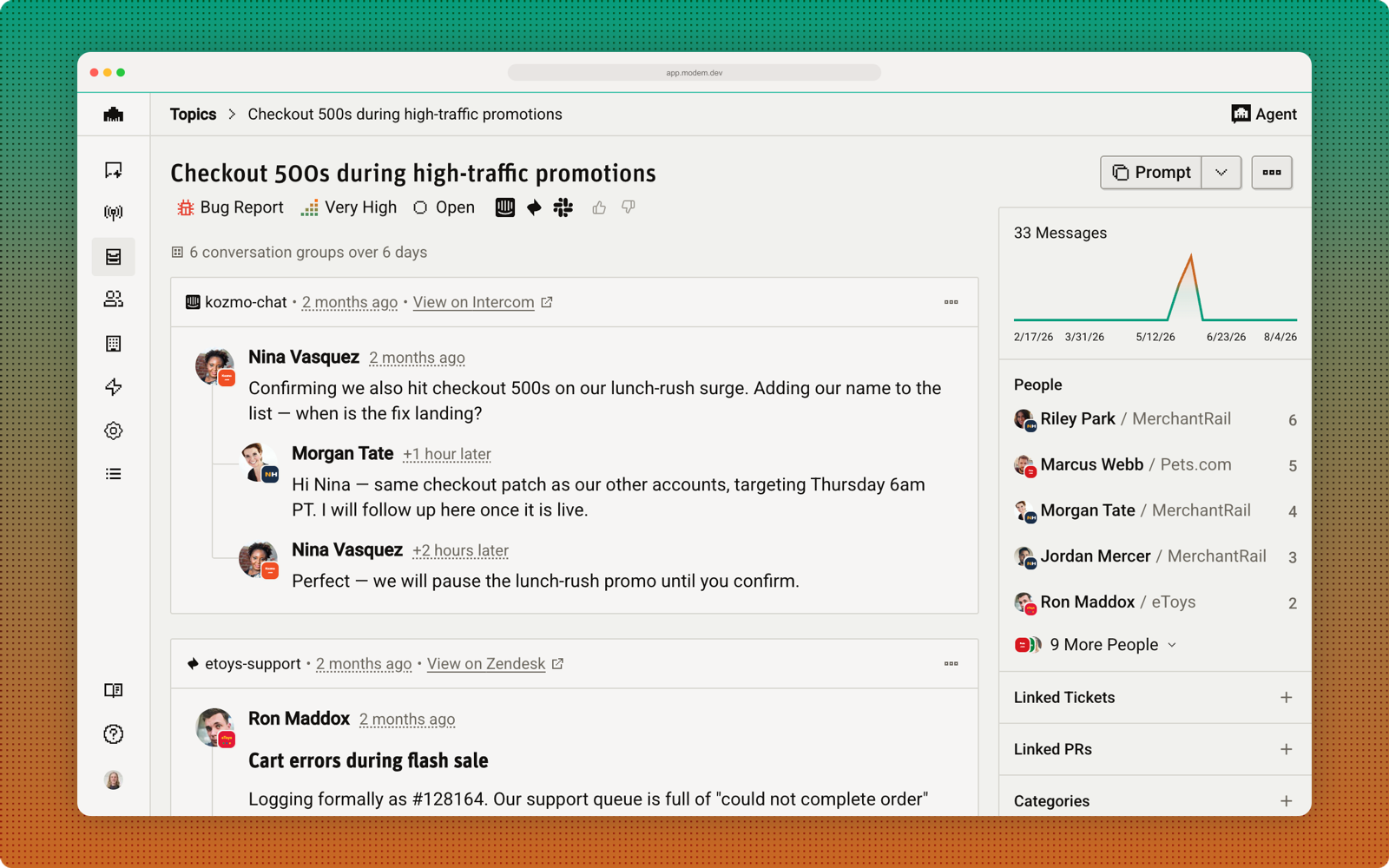
Everything Modem reads lands in one prioritized view at app.modem.dev, grouped by what people are actually asking for and tied to the people who raised it. When something merges, Modem tells your team who asked and can draft the follow-up when you ask.
Discord GongSlackZendesk
 IntercomEmail
 Linear
 GitHuband more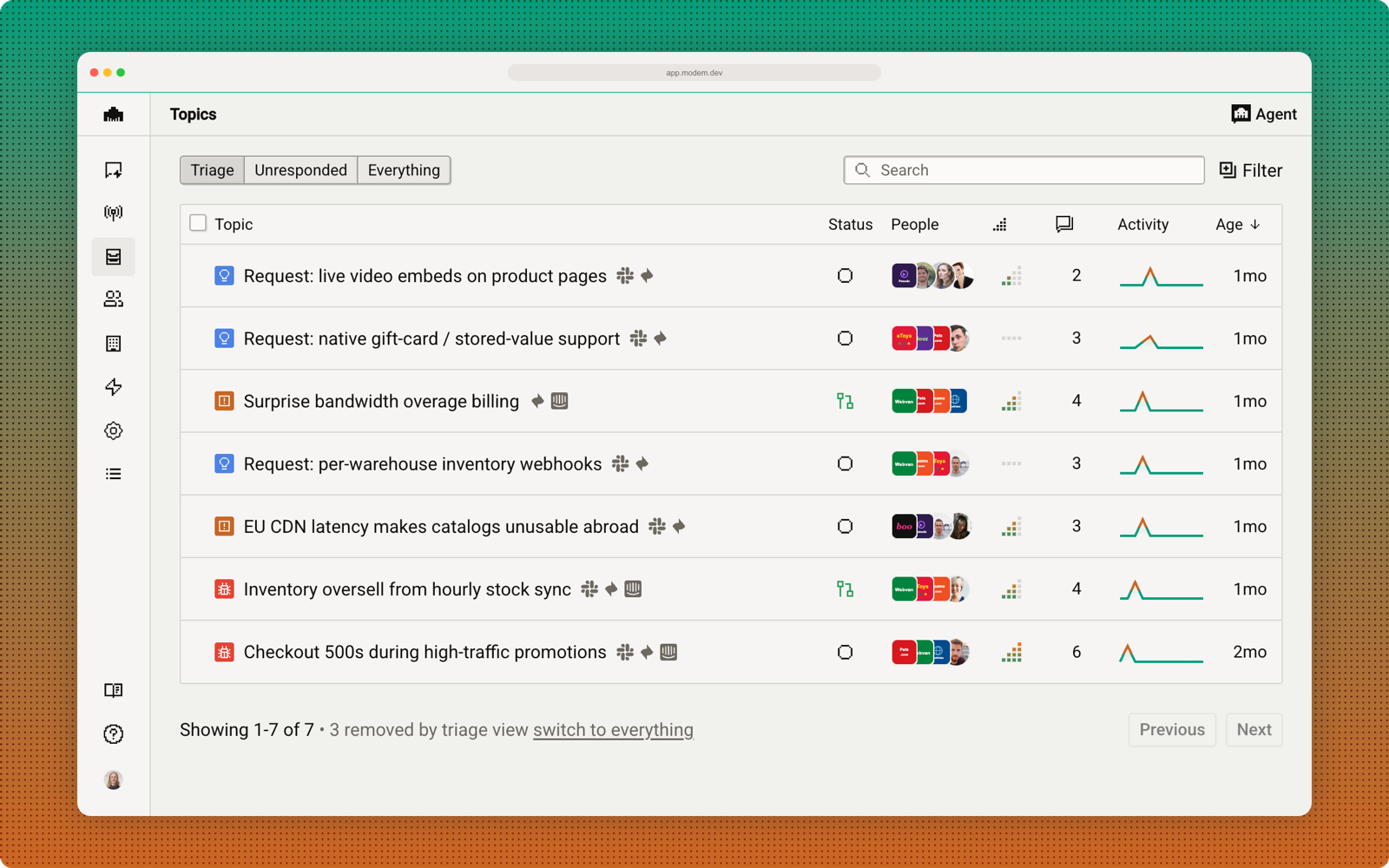
Connect your server
It takes a few minutes. You need a Modem account and permission to add a bot to the Discord server you want to connect.
- 1
Create a Modem account
Sign up at app.modem.dev. There is a free plan, so you do not need to pay to connect a server.
- 2
Open Settings → Integrations → Discord
Press Connect Discord. This lives inside the product because connecting links one Discord server to one specific Modem organization.
- 3
Authorize the bot on your server
Discord shows you exactly what the Modem bot is asking for. Pick the server and approve. You need permission to add bots to that server.
- 4
Turn on the channels you want read
Back in Modem you get the list of channels with a toggle each. Start with #support, #feedback, #bugs, and your forum channels. Skip the meme channels.
- 5
Mention it
Ask @Modem what your community has been asking for this week, and check the topics it built in the dashboard.
See it on your own server.
Book a walkthrough and we will connect it to a channel you already have, show you the topics it finds in your first 30 days of history, and how the answer gets back to the people who asked.