> ## Documentation Index
> Fetch the complete documentation index at: https://modem.ai/docs/llms.txt
> Use this file to discover all available pages before exploring further.
# Slack
> Capture messages and talk to the Modem Agent from Slack
export const Prompt = ({text, variant = 'accent'}) => {
const [copied, setCopied] = useState(false);
const handleCopy = async () => {
try {
await navigator.clipboard.writeText(text);
setCopied(true);
setTimeout(() => setCopied(false), 2000);
} catch {}
};
const clipboardIcon = ;
const checkIcon = ;
const promptIcon = ;
return
{promptIcon}
{text}
;
};
The Slack integration captures messages from your Slack workspace (you choose which channels) and lets your team interact with the Modem Agent directly from Slack.
## Prerequisites
* Admin access to the Slack workspace you want to connect (or permission to install apps)
* A Modem organization
## Setup
Go to **Settings** → **Integrations** → **Slack** in your Modem dashboard and click **Connect Slack**.
You'll be redirected to Slack to authorize the Modem app. Review the permissions and click **Allow**.
Modem requests permission to read and post messages in the channels and DMs it's part of, and to work with files, reactions,
channels, user profiles, and link previews.
Invite the Modem bot to channels you want it to monitor. See [Adding Channels](#adding-channels) below.
DM or @mention the Modem bot to ask questions and take action. See [Talking to the Agent](#talking-to-the-modem-agent-in-slack).
## Adding Channels
Modem monitors any channel the bot has been added to. You can add the bot to a channel in a few ways:
* Use `/invite @Modem` in the channel
* Mention `@Modem` in the channel
* Open the channel's **Members** tab and add Modem under **Integrations**
### Channel Notices
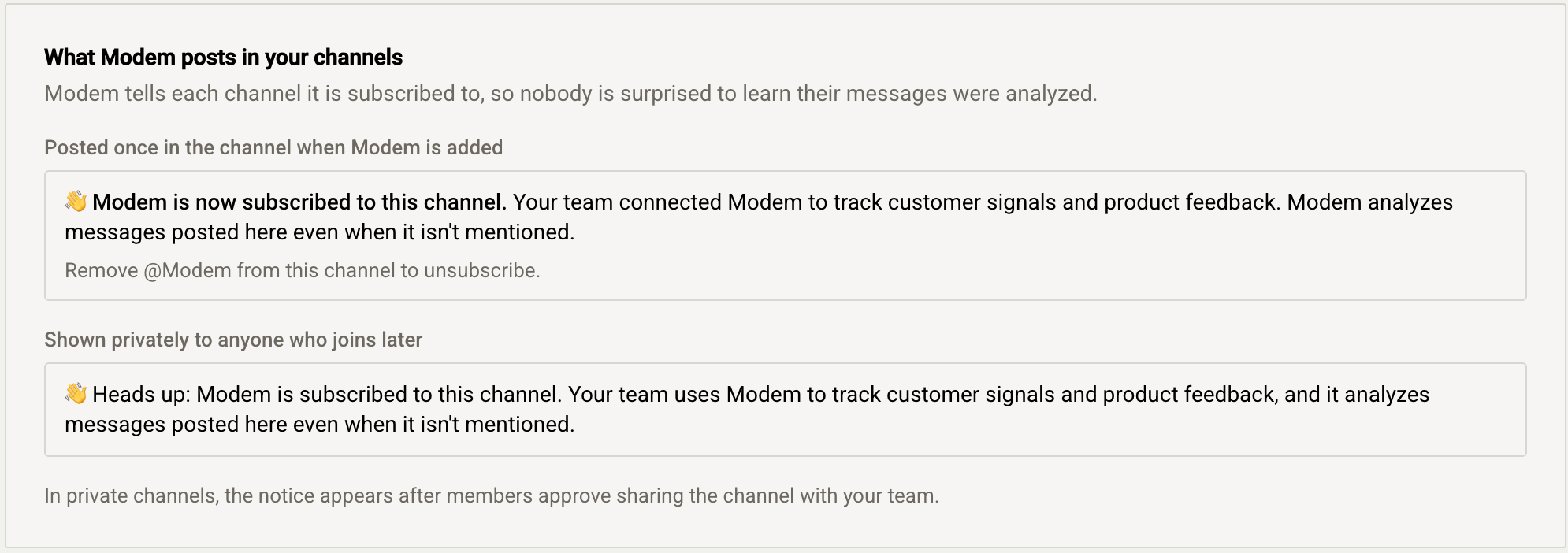
Modem tells a channel it is subscribed, so nobody is surprised to learn later that their messages were analyzed.
**When Modem is added**, it posts a message everyone in the channel can see. It names who added it (or, on an auto-join, the channel-name pattern that matched) and says that messages posted there are analyzed even when `@Modem` isn't mentioned.
**When someone joins later**, they get the same disclaimer as a private note only they can see. They weren't in the channel to read the original notice, so Modem tells them directly. That note doesn't tell them how to unsubscribe: undoing a decision the channel already made isn't a newcomer's call.
Not every subscribed channel has the notice. Channel sync also subscribes public channels the bot was already a member of, for example when a workspace connects or reconnects, and it posts nothing in those channels.
See [Private Channels](#private-channels) for how the approval step works.
Removing `@Modem` from a channel unsubscribes it.
### Recommended Channels
* `#support` or `#help`: Customer support requests
* `#feedback` or `#suggestions`: Feature requests and ideas
* `#bugs` or `#issues`: Bug reports
* Slack Connect channels shared with your customers
### Channels to Avoid
* Social channels
* Bot notification channels (high noise, low signal)
* Channels with sensitive information
### Auto-Join by Channel Name
If you use Slack Connect or follow a naming convention for external channels (e.g. `#ext-acme`, `#ext-bigcorp`), you can configure Modem to automatically join public channels whose names match a prefix or suffix.
Go to **Settings** → **Integrations** → **Slack** and enable **Join new Slack channels automatically**. Add one or more prefixes (e.g. `ext-`, `partner-`) or suffixes (e.g. `-support`). When a public channel is created or renamed to match, Modem joins it automatically.
Auto-join only applies to public channels. Private channels must be added manually, and require a member's approval. See [Private
Channels](#private-channels).
## Private Channels
Modem treats private channels differently from public ones: **nothing from a private channel enters Modem until a member of that channel shares it with your team.**
Two exceptions: a public channel Modem is in stays shared if it's converted to private, and private channels Modem captured before this approval step existed stay shared.
### Sharing a Private Channel
When @Modem is invited to a private channel, it doesn't start capturing messages. Instead, it posts a message in the channel asking its members to decide:
* **Share with team**: Modem subscribes to the channel and starts capturing messages from that moment forward. Conversation history from before the channel was shared is not imported.
* **Keep private**: Modem captures nothing from the channel. This isn't permanent: any member can share the channel later by removing and re-inviting @Modem. To avoid spamming the channel, Modem waits about a week after its last prompt before asking again.
Any member of the private channel who has linked their Slack account to your Modem organization can answer the prompt. Slack Connect guests from other companies can't.
The decision deliberately belongs to the people in the channel: a Slack workspace admin or Modem administrator cannot share a private channel on the members' behalf from the dashboard.
If a Slack workspace owner later converts the channel to public, Modem treats it like any other public channel it has been invited to: it subscribes to the channel, replaces the unanswered prompt with a notice saying so, and imports the last 30 days of history. A shared channel your team had unsubscribed in Modem stays unsubscribed after the conversion, so nothing is imported until you subscribe it again.
When a member clicks **Share with team**, the prompt is replaced with a confirmation showing who shared the channel and stating that Modem is now subscribed to it, including messages that don't mention `@Modem`. Members who join the channel after it was shared see a one-time private note with the same disclaimer.
When a member clicks **Keep private**, the prompt is replaced with a note confirming that nothing will be captured:
### What Sharing Means
Once shared, a private channel behaves like any other monitored channel: its messages, topics, and participants are visible to everyone in your Modem organization, and the channel can be used as a destination for Modem output (reports, notifications). Sharing is the channel members' decision to make those conversations team-visible in Modem.
### Private Channel Names Stay Private
Until a member shares it, a private channel doesn't appear anywhere in the Modem dashboard, not even its name. Unshared private channels are hidden from the channel list for everyone in your organization, including admins, and mentions of private channels in captured messages only resolve to channel names once the channel has been shared.
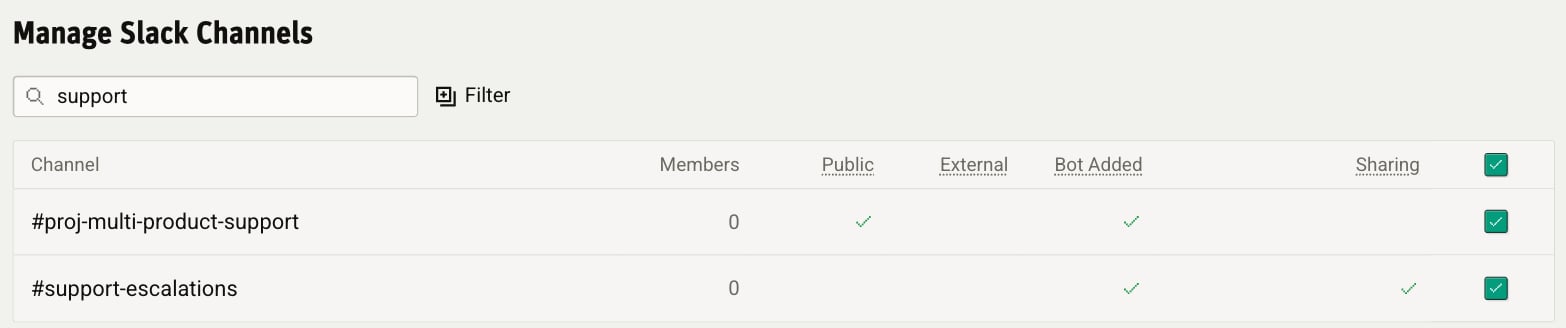
After a member shares the channel, it appears in **Settings** → **Integrations** → **Slack** with a check in the **Sharing** column.
## Talking to the Modem Agent in Slack
The same Modem Agent available on the web is also available directly in Slack. You can DM the Modem bot or @mention it in a channel to ask questions, get summaries, or take action on your data without leaving Slack.
You can reach the agent two ways:
* **Direct message.** Open a DM with the Modem bot to start a conversation.
* **@mention in a channel.** Mention @Modem in any channel where the bot has been added.
A few examples of what you can do:
The Modem bot must be added to channels where you want to use @mentions.
### Who Can Talk to Modem?
Only authorized users can interact with the Modem Agent in Slack. Authorization requires two things:
1. **A linked Modem account.** Your Slack identity must be connected to a Modem account. If it isn't, the bot will prompt you to connect your account.
2. **Organization membership.** You must be a member of the Modem organization connected to that Slack workspace. If your account is linked but you're not a member, you'll see an access denied message and need an administrator to invite you.
### Auto-Join for Slack Workspace Members
**Allow Slack workspace members to join Modem** is on by default. While it's on, any member of the connected Slack workspace joins your Modem organization when they link their Slack account, with no invitation needed. Slack guests and Slack Connect users from other companies can't join this way.
This suits teams whose Slack workspace already matches their Modem team. To limit the agent to people you invite, turn it off in **Settings** → **Integrations** → **Slack**.
## Troubleshooting
* Verify the channel is selected in integration settings - Check that the Modem app is installed in the workspace - For private
channels, ensure Modem has been added to the channel **and** a channel member has approved sharing it (see [Private
Channels](#private-channels)) - Allow a few minutes for initial sync to complete
Private channels don't appear in Modem (not even by name) until a member of the channel approves sharing. Invite @Modem to the
channel and have any member click **Share with team** on the prompt it posts. See [Private Channels](#private-channels).
Modem only captures a private channel's messages from the moment it was shared. Conversations from before a member approved sharing
are not imported. If the channel's history should be in Modem, a Slack workspace owner can convert the channel to public; Modem then
subscribes to it and imports the last 30 days, unless your team had unsubscribed the channel in Modem, in which case subscribe it
again first.
When Modem joins a public channel, it imports the last 30 days of messages. Older history is not imported.
User email visibility depends on workspace settings. If your workspace restricts email visibility, Modem won't be able to access
them.
## Disconnecting
To disconnect Slack:
1. Go to **Settings** → **Integrations** → **Slack**
2. Click **Disconnect**
This stops new data from being captured. Historical data remains in Modem.
To fully remove Modem from your Slack workspace:
1. Go to your Slack workspace settings
2. Navigate to **Apps**
3. Find Modem and click **Remove**
This documentation is built and hosted on [Mintlify](https://mintlify.com), a developer documentation platform.
 See [Private Channels](#private-channels) for how the approval step works.
Removing `@Modem` from a channel unsubscribes it.
### Recommended Channels
* `#support` or `#help`: Customer support requests
* `#feedback` or `#suggestions`: Feature requests and ideas
* `#bugs` or `#issues`: Bug reports
* Slack Connect channels shared with your customers
### Channels to Avoid
* Social channels
* Bot notification channels (high noise, low signal)
* Channels with sensitive information
### Auto-Join by Channel Name
If you use Slack Connect or follow a naming convention for external channels (e.g. `#ext-acme`, `#ext-bigcorp`), you can configure Modem to automatically join public channels whose names match a prefix or suffix.
Go to **Settings** → **Integrations** → **Slack** and enable **Join new Slack channels automatically**. Add one or more prefixes (e.g. `ext-`, `partner-`) or suffixes (e.g. `-support`). When a public channel is created or renamed to match, Modem joins it automatically.
See [Private Channels](#private-channels) for how the approval step works.
Removing `@Modem` from a channel unsubscribes it.
### Recommended Channels
* `#support` or `#help`: Customer support requests
* `#feedback` or `#suggestions`: Feature requests and ideas
* `#bugs` or `#issues`: Bug reports
* Slack Connect channels shared with your customers
### Channels to Avoid
* Social channels
* Bot notification channels (high noise, low signal)
* Channels with sensitive information
### Auto-Join by Channel Name
If you use Slack Connect or follow a naming convention for external channels (e.g. `#ext-acme`, `#ext-bigcorp`), you can configure Modem to automatically join public channels whose names match a prefix or suffix.
Go to **Settings** → **Integrations** → **Slack** and enable **Join new Slack channels automatically**. Add one or more prefixes (e.g. `ext-`, `partner-`) or suffixes (e.g. `-support`). When a public channel is created or renamed to match, Modem joins it automatically.
 * **Share with team**: Modem subscribes to the channel and starts capturing messages from that moment forward. Conversation history from before the channel was shared is not imported.
* **Keep private**: Modem captures nothing from the channel. This isn't permanent: any member can share the channel later by removing and re-inviting @Modem. To avoid spamming the channel, Modem waits about a week after its last prompt before asking again.
Any member of the private channel who has linked their Slack account to your Modem organization can answer the prompt. Slack Connect guests from other companies can't.
The decision deliberately belongs to the people in the channel: a Slack workspace admin or Modem administrator cannot share a private channel on the members' behalf from the dashboard.
If a Slack workspace owner later converts the channel to public, Modem treats it like any other public channel it has been invited to: it subscribes to the channel, replaces the unanswered prompt with a notice saying so, and imports the last 30 days of history. A shared channel your team had unsubscribed in Modem stays unsubscribed after the conversion, so nothing is imported until you subscribe it again.
When a member clicks **Share with team**, the prompt is replaced with a confirmation showing who shared the channel and stating that Modem is now subscribed to it, including messages that don't mention `@Modem`. Members who join the channel after it was shared see a one-time private note with the same disclaimer.
* **Share with team**: Modem subscribes to the channel and starts capturing messages from that moment forward. Conversation history from before the channel was shared is not imported.
* **Keep private**: Modem captures nothing from the channel. This isn't permanent: any member can share the channel later by removing and re-inviting @Modem. To avoid spamming the channel, Modem waits about a week after its last prompt before asking again.
Any member of the private channel who has linked their Slack account to your Modem organization can answer the prompt. Slack Connect guests from other companies can't.
The decision deliberately belongs to the people in the channel: a Slack workspace admin or Modem administrator cannot share a private channel on the members' behalf from the dashboard.
If a Slack workspace owner later converts the channel to public, Modem treats it like any other public channel it has been invited to: it subscribes to the channel, replaces the unanswered prompt with a notice saying so, and imports the last 30 days of history. A shared channel your team had unsubscribed in Modem stays unsubscribed after the conversion, so nothing is imported until you subscribe it again.
When a member clicks **Share with team**, the prompt is replaced with a confirmation showing who shared the channel and stating that Modem is now subscribed to it, including messages that don't mention `@Modem`. Members who join the channel after it was shared see a one-time private note with the same disclaimer.
 When a member clicks **Keep private**, the prompt is replaced with a note confirming that nothing will be captured:
 ### What Sharing Means
Once shared, a private channel behaves like any other monitored channel: its messages, topics, and participants are visible to everyone in your Modem organization, and the channel can be used as a destination for Modem output (reports, notifications). Sharing is the channel members' decision to make those conversations team-visible in Modem.
### Private Channel Names Stay Private
Until a member shares it, a private channel doesn't appear anywhere in the Modem dashboard, not even its name. Unshared private channels are hidden from the channel list for everyone in your organization, including admins, and mentions of private channels in captured messages only resolve to channel names once the channel has been shared.
After a member shares the channel, it appears in **Settings** → **Integrations** → **Slack** with a check in the **Sharing** column.
### What Sharing Means
Once shared, a private channel behaves like any other monitored channel: its messages, topics, and participants are visible to everyone in your Modem organization, and the channel can be used as a destination for Modem output (reports, notifications). Sharing is the channel members' decision to make those conversations team-visible in Modem.
### Private Channel Names Stay Private
Until a member shares it, a private channel doesn't appear anywhere in the Modem dashboard, not even its name. Unshared private channels are hidden from the channel list for everyone in your organization, including admins, and mentions of private channels in captured messages only resolve to channel names once the channel has been shared.
After a member shares the channel, it appears in **Settings** → **Integrations** → **Slack** with a check in the **Sharing** column.
 ## Talking to the Modem Agent in Slack
The same Modem Agent available on the web is also available directly in Slack. You can DM the Modem bot or @mention it in a channel to ask questions, get summaries, or take action on your data without leaving Slack.
You can reach the agent two ways:
* **Direct message.** Open a DM with the Modem bot to start a conversation.
* **@mention in a channel.** Mention @Modem in any channel where the bot has been added.
A few examples of what you can do:
## Talking to the Modem Agent in Slack
The same Modem Agent available on the web is also available directly in Slack. You can DM the Modem bot or @mention it in a channel to ask questions, get summaries, or take action on your data without leaving Slack.
You can reach the agent two ways:
* **Direct message.** Open a DM with the Modem bot to start a conversation.
* **@mention in a channel.** Mention @Modem in any channel where the bot has been added.
A few examples of what you can do: