---
title: 'In-app Feedback'
description: 'Collect feedback from your own app, CLI, or AI agent'
---
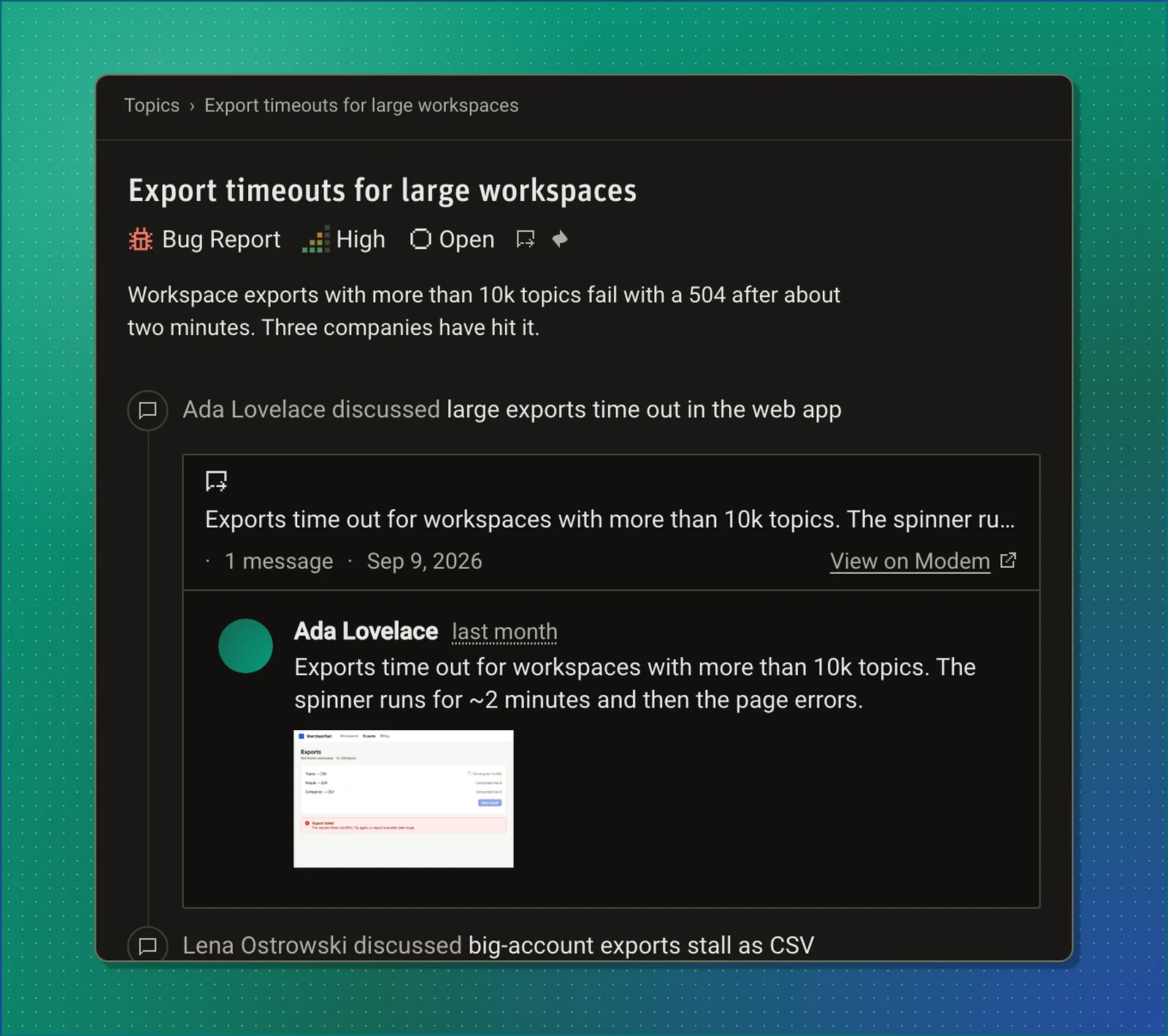
In-app feedback lets the people who use your product send feedback straight into Modem. You create a **feedback channel** for each place feedback comes from, put its token in that app, and every submission lands as a conversation that groups into [topics](/docs/guides/topics), links to [people and companies](/docs/guides/people), and can start an [automation](/docs/features/automations).
:::info
A feedback token can only submit feedback to its channel. It is safe to ship in a browser bundle, a published binary, or an agent's
configuration. It cannot read anything from Modem.
:::
## How it works
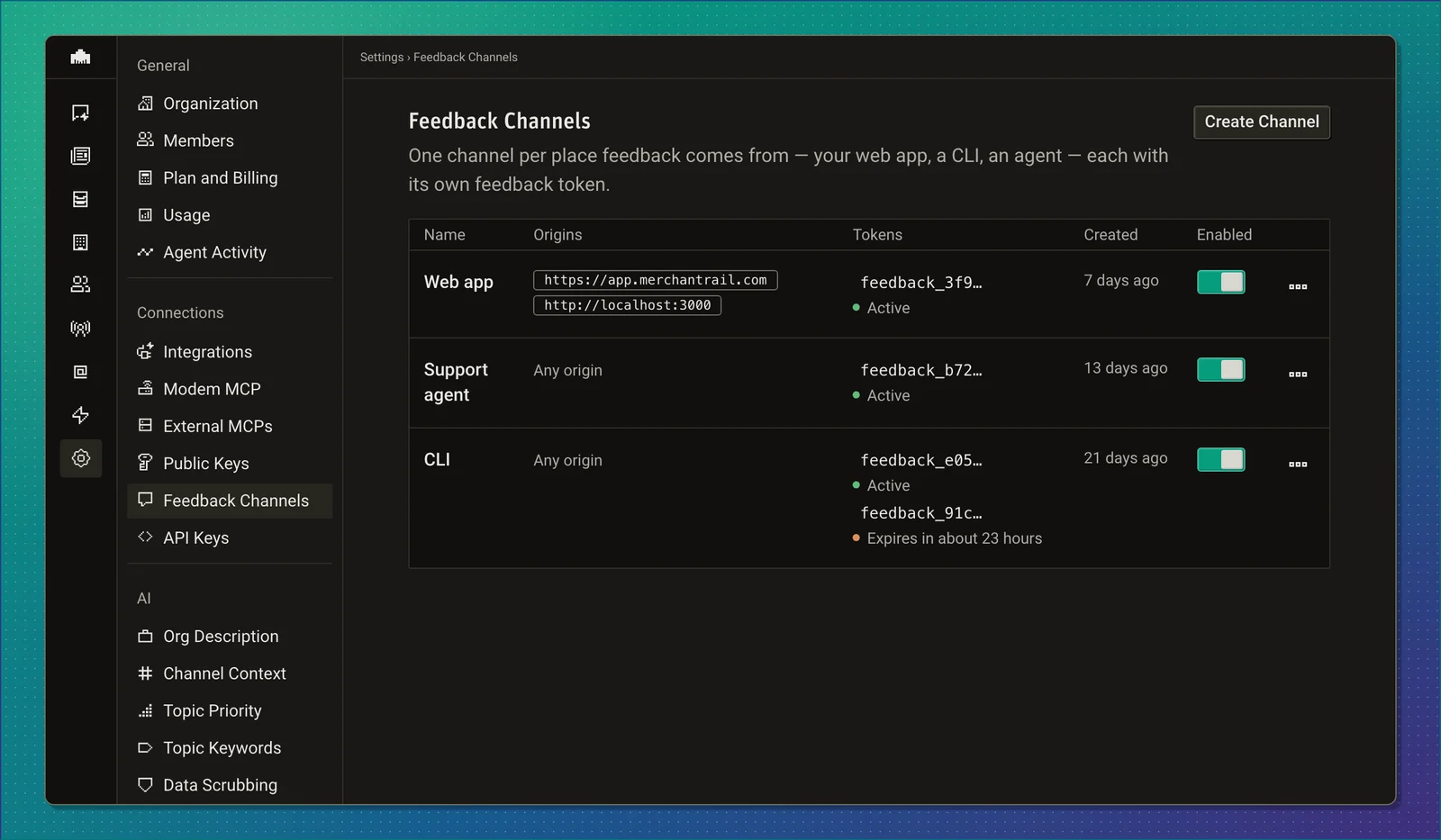
A feedback channel is one place feedback comes from: your web app, a CLI, your support assistant. Each channel has its own token, its own list of allowed browser origins, and its own on/off switch, so you can rotate or disable one without touching the others.
Clients send feedback to `https://ingest.modem.dev/feedback` with the token as a bearer header. Modem accepts the submission, stores any screenshots, and records it as a `feedback_submission` conversation in the channel. From there it is processed like every other source.
There are three ways to send feedback, and one channel can receive from all of them:
| Client | How it sends |
| -------------------------------- | ------------------------------------------------------------------------------------------------------- |
| A web app | The [feedback widget](#the-feedback-widget), a React dialog and crash form you install with one command |
| Anything that can make a request | A `POST` to the [feedback endpoint](/docs/api/feedback/endpoint) from a backend, a CLI, or a mobile app |
| Your own AI agent | The [feedback MCP server](/docs/api/feedback/mcp-server), which gives the agent a `submit_feedback` tool |
 ## Prerequisites
- **Owner or admin** role in your Modem organization, to create channels and manage tokens. Any member can view the channels page.
- A place to put the token: a public environment variable for a web app, a config file for a CLI, or an agent's MCP configuration.
## Setup
The fastest path is to hand the work to your coding agent. Modem ships an `install-feedback` skill on its [MCP server](/docs/api/modem-mcp-server) that creates the channel, stores the token, adds the UI, and sends a test item.
1. **Copy the starter prompt**
Go to **Settings** → **Integrations** → **In-app feedback** and click **Copy prompt**. The prompt tells your coding agent to connect
the Modem MCP server if it is not connected yet, load the `install-feedback` skill, and follow it.
2. **Paste it into your coding agent**
Paste the prompt into Claude Code, Cursor, Codex, or any MCP-capable coding agent open on your project. The agent asks where the
feedback trigger should go, then creates the channel, writes the token into your project's public environment variable, installs the
widget, and mounts it. See [Installing with a coding agent](#installing-with-a-coding-agent) below.
3. **Check the test item**
The skill sends one submission whose message starts with `[install test]` and confirms it arrived with `search_modem`. You can also
find it in Modem by asking the agent.
## Prerequisites
- **Owner or admin** role in your Modem organization, to create channels and manage tokens. Any member can view the channels page.
- A place to put the token: a public environment variable for a web app, a config file for a CLI, or an agent's MCP configuration.
## Setup
The fastest path is to hand the work to your coding agent. Modem ships an `install-feedback` skill on its [MCP server](/docs/api/modem-mcp-server) that creates the channel, stores the token, adds the UI, and sends a test item.
1. **Copy the starter prompt**
Go to **Settings** → **Integrations** → **In-app feedback** and click **Copy prompt**. The prompt tells your coding agent to connect
the Modem MCP server if it is not connected yet, load the `install-feedback` skill, and follow it.
2. **Paste it into your coding agent**
Paste the prompt into Claude Code, Cursor, Codex, or any MCP-capable coding agent open on your project. The agent asks where the
feedback trigger should go, then creates the channel, writes the token into your project's public environment variable, installs the
widget, and mounts it. See [Installing with a coding agent](#installing-with-a-coding-agent) below.
3. **Check the test item**
The skill sends one submission whose message starts with `[install test]` and confirms it arrived with `search_modem`. You can also
find it in Modem by asking the agent.
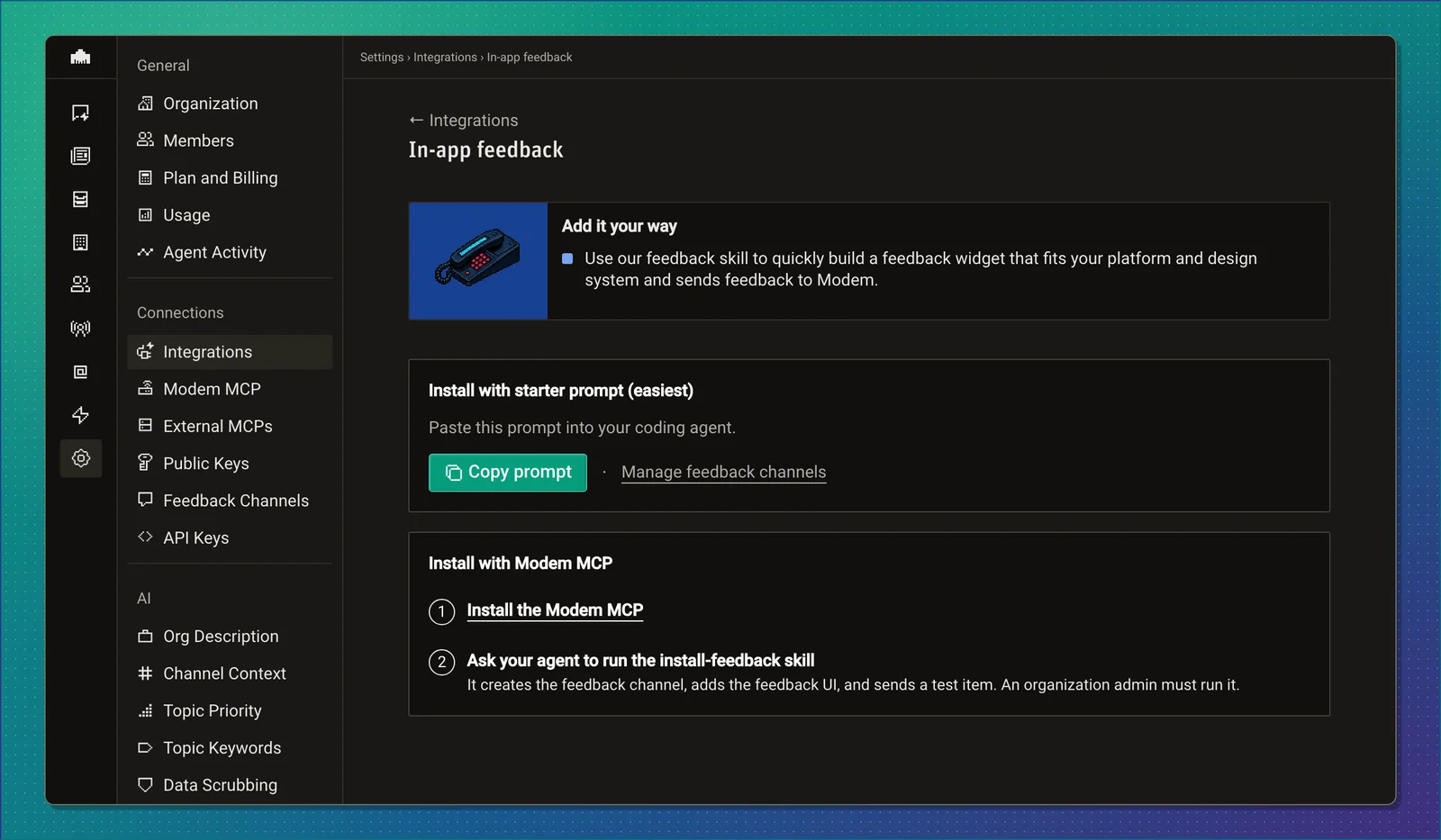 To set things up by hand instead, create a channel in **Settings** → **Feedback Channels**, then install the [widget](#the-feedback-widget) or call the [endpoint](/docs/api/feedback/endpoint) with the token.
## Feedback channels
**Settings** → **Feedback Channels** lists every channel with its origins, tokens, creation date, and switch. Admins create and manage channels; members can view the list.
To set things up by hand instead, create a channel in **Settings** → **Feedback Channels**, then install the [widget](#the-feedback-widget) or call the [endpoint](/docs/api/feedback/endpoint) with the token.
## Feedback channels
**Settings** → **Feedback Channels** lists every channel with its origins, tokens, creation date, and switch. Admins create and manage channels; members can view the list.
 ### Creating a channel
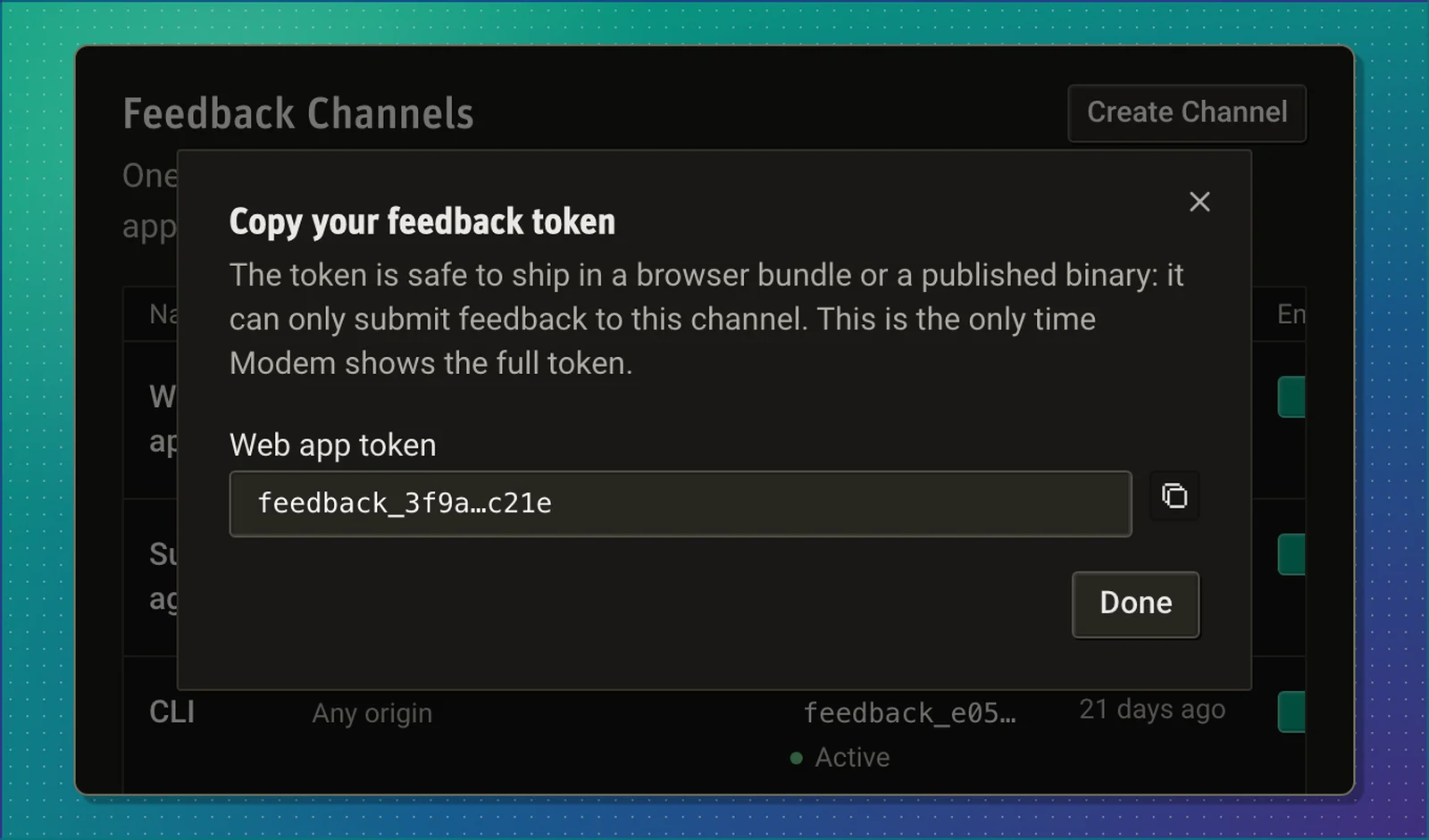
Click **Create Channel** and give it a name of up to 100 characters. Optionally add **allowed origins**, one per line. Modem shows the full token once, in the dialog that follows. Copy it there; the table only ever shows the first few characters again.
### Creating a channel
Click **Create Channel** and give it a name of up to 100 characters. Optionally add **allowed origins**, one per line. Modem shows the full token once, in the dialog that follows. Copy it there; the table only ever shows the first few characters again.
 Every channel also gets its own entry in Modem's channel list, so you can scope an [automation](#automations) or a product to one channel.
### Allowed origins
Allowed origins protect a token that ships in a browser bundle. When the list has entries, Modem accepts a submission only if the request's `Origin` header matches one of them exactly. Enter bare origins such as `https://app.example.com` or `http://localhost:3000`, up to 20 per channel. Wildcards, paths, and query strings are not allowed.
Requests that carry no `Origin` header, such as a backend, a CLI, or an agent, always pass this check. A channel with an empty list accepts any origin.
:::note
A stale origin list is the most common reason a widget stops working after a domain change. The browser gets a `403` and the widget
shows that the feedback could not be sent.
:::
### Rotating and revoking tokens
From a channel's menu you can rotate or revoke its token:
- **Rotate** issues a new token and keeps the old one working for 24 hours, so you can roll a deployment without a gap.
- **Revoke** stops a token immediately. This cannot be undone.
- **Disable** a channel with its switch to pause every token on it at once. Re-enable it to resume.
Channels cannot be deleted. Disable one you no longer use. Historical feedback stays in Modem either way.
## Installing with a coding agent
The `install-feedback` skill does every step itself. It reads your project to learn the framework and where public environment variables live, asks one question about placement if you have not said where feedback should go, then calls `create_feedback_channel` with your app's production and local origins.
Every channel also gets its own entry in Modem's channel list, so you can scope an [automation](#automations) or a product to one channel.
### Allowed origins
Allowed origins protect a token that ships in a browser bundle. When the list has entries, Modem accepts a submission only if the request's `Origin` header matches one of them exactly. Enter bare origins such as `https://app.example.com` or `http://localhost:3000`, up to 20 per channel. Wildcards, paths, and query strings are not allowed.
Requests that carry no `Origin` header, such as a backend, a CLI, or an agent, always pass this check. A channel with an empty list accepts any origin.
:::note
A stale origin list is the most common reason a widget stops working after a domain change. The browser gets a `403` and the widget
shows that the feedback could not be sent.
:::
### Rotating and revoking tokens
From a channel's menu you can rotate or revoke its token:
- **Rotate** issues a new token and keeps the old one working for 24 hours, so you can roll a deployment without a gap.
- **Revoke** stops a token immediately. This cannot be undone.
- **Disable** a channel with its switch to pause every token on it at once. Re-enable it to resume.
Channels cannot be deleted. Disable one you no longer use. Historical feedback stays in Modem either way.
## Installing with a coding agent
The `install-feedback` skill does every step itself. It reads your project to learn the framework and where public environment variables live, asks one question about placement if you have not said where feedback should go, then calls `create_feedback_channel` with your app's production and local origins.
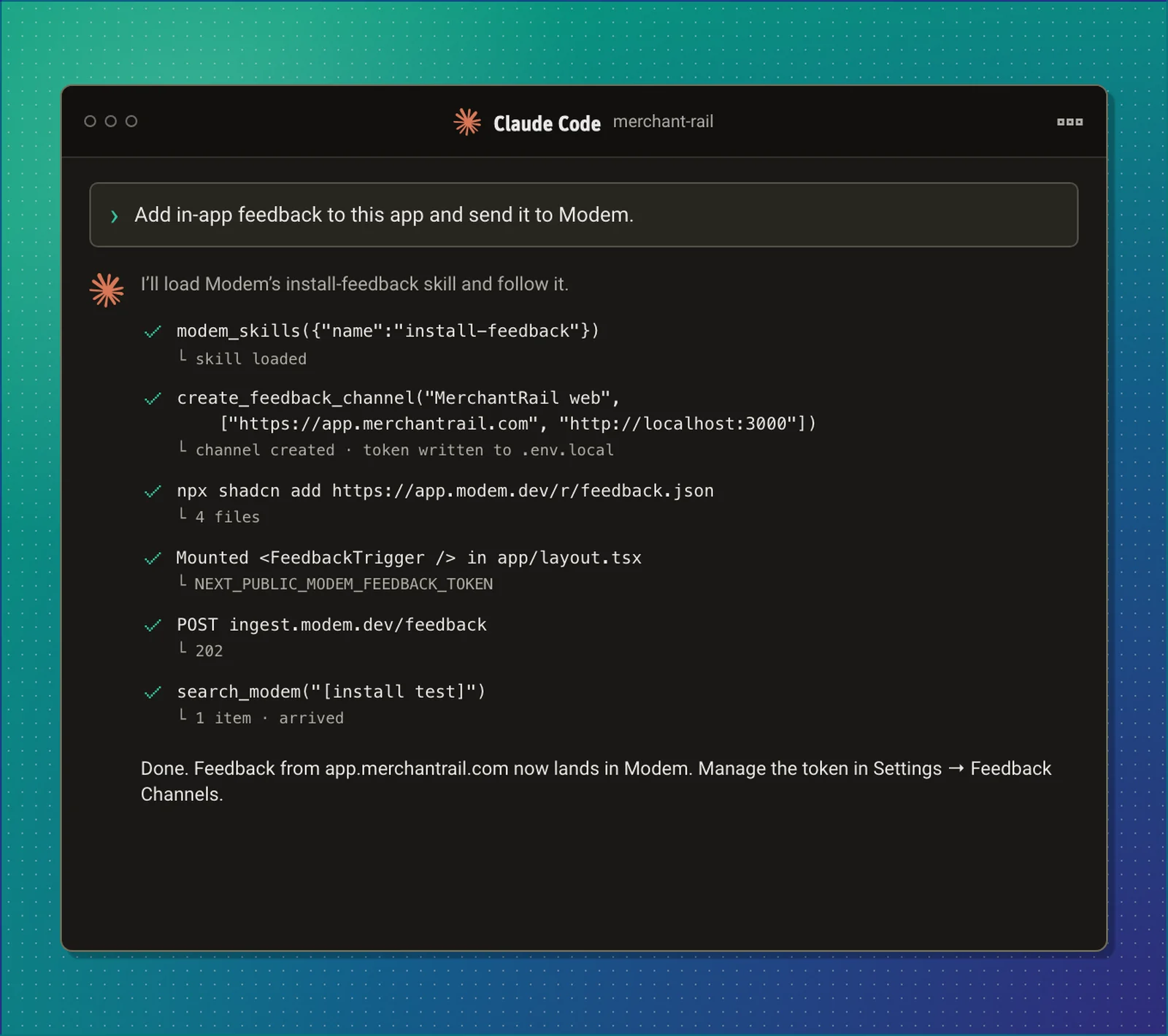 The token goes into your project's public environment variable, `NEXT_PUBLIC_MODEM_FEEDBACK_TOKEN` for Next.js or `VITE_MODEM_FEEDBACK_TOKEN` for Vite, and never into chat, logs, or a tracked file. For a web app with shadcn/ui the skill installs the [widget](#the-feedback-widget). For anything else it wires a request to the [endpoint](/docs/api/feedback/endpoint), and for an app with its own AI agent it adds the [feedback MCP server](/docs/api/feedback/mcp-server) to that agent.
Creating a channel needs an organization admin and the `agent:invoke` scope. If your token lacks either, the skill still builds the UI and tells you to create the channel in **Settings** → **Feedback Channels** and paste the token yourself.
## The feedback widget
The widget is a shadcn/ui registry item. Install it into any React project that uses shadcn/ui:
```bash
npx shadcn@latest add https://app.modem.dev/r/feedback.json
```
It adds four files to your project, `feedback-trigger.tsx`, `feedback-error-form.tsx`, a `modem-feedback` client library, and a `use-feedback-form` hook, along with the `button`, `dialog`, `input`, `label`, and `textarea` primitives. The code is yours to restyle.
The token goes into your project's public environment variable, `NEXT_PUBLIC_MODEM_FEEDBACK_TOKEN` for Next.js or `VITE_MODEM_FEEDBACK_TOKEN` for Vite, and never into chat, logs, or a tracked file. For a web app with shadcn/ui the skill installs the [widget](#the-feedback-widget). For anything else it wires a request to the [endpoint](/docs/api/feedback/endpoint), and for an app with its own AI agent it adds the [feedback MCP server](/docs/api/feedback/mcp-server) to that agent.
Creating a channel needs an organization admin and the `agent:invoke` scope. If your token lacks either, the skill still builds the UI and tells you to create the channel in **Settings** → **Feedback Channels** and paste the token yourself.
## The feedback widget
The widget is a shadcn/ui registry item. Install it into any React project that uses shadcn/ui:
```bash
npx shadcn@latest add https://app.modem.dev/r/feedback.json
```
It adds four files to your project, `feedback-trigger.tsx`, `feedback-error-form.tsx`, a `modem-feedback` client library, and a `use-feedback-form` hook, along with the `button`, `dialog`, `input`, `label`, and `textarea` primitives. The code is yours to restyle.
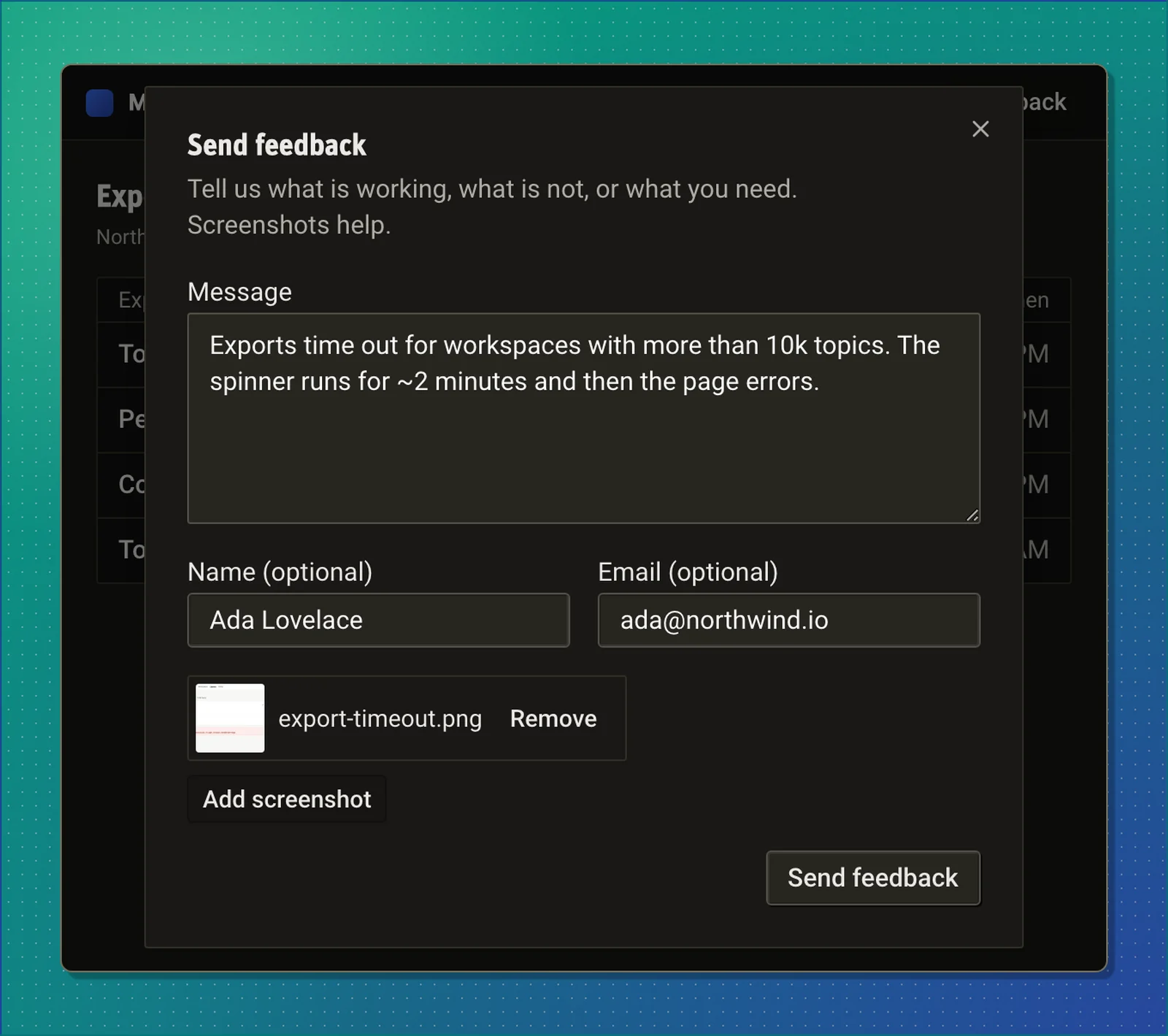 `FeedbackTrigger` renders a **Feedback** button that opens the dialog. Pass the token and, when you know who is signed in, the viewer:
```tsx
```
With a viewer email the dialog hides the name and email fields and sends the viewer's details. Without one it asks for an optional name and email. Either way the reporter can attach up to two screenshots of 5 MB each in PNG, JPEG, GIF, or WebP, and write a message of up to 4,096 characters. The page URL goes along automatically. On success the dialog thanks the reporter and closes itself after two seconds. If the request fails, the draft stays and the reporter can resend.
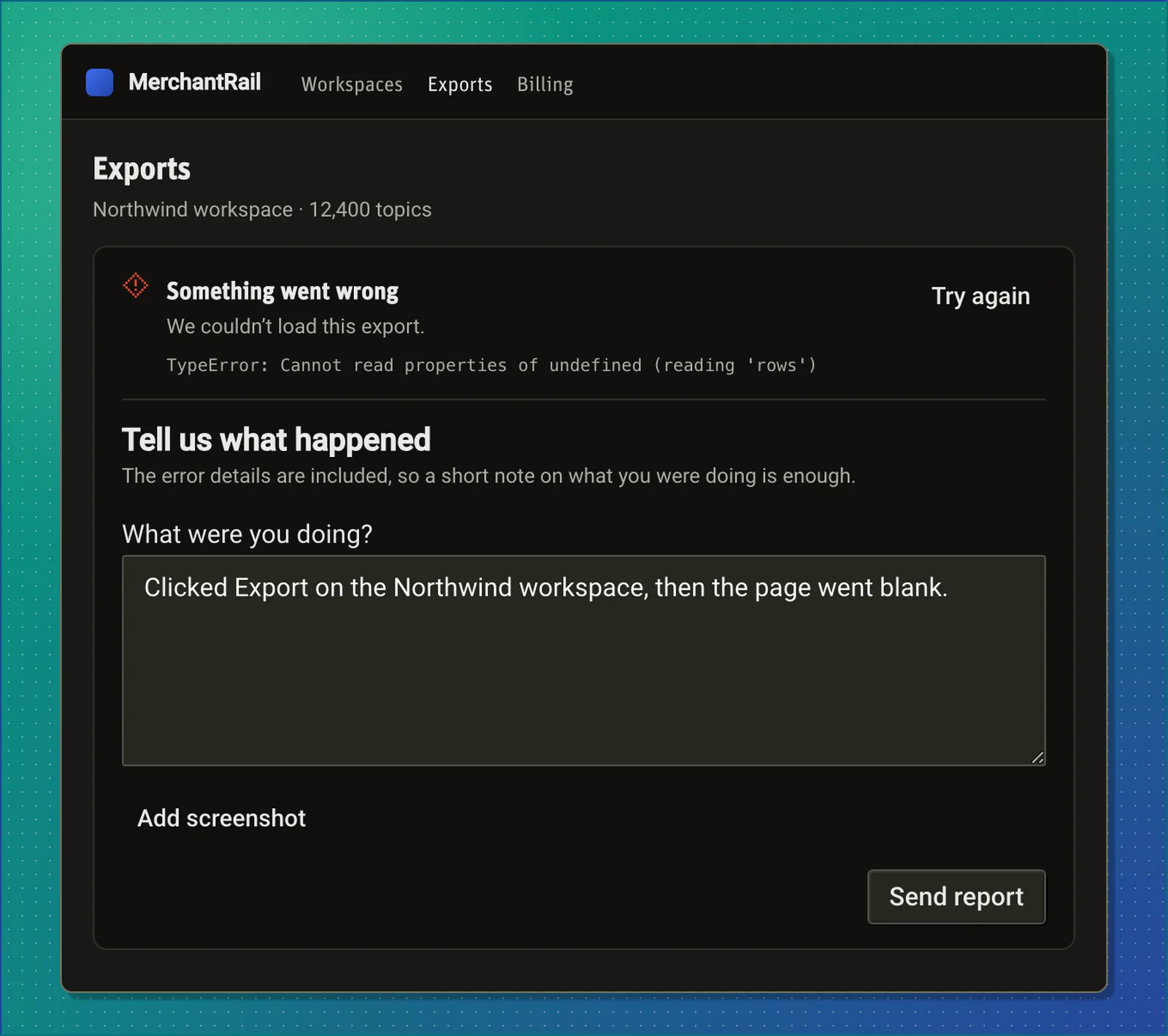
`FeedbackErrorForm` is the crash-report variant for your error boundary. It sends the error's name and message as context and, if you pass an error-tracking `eventId`, links the report to that event.
`FeedbackTrigger` renders a **Feedback** button that opens the dialog. Pass the token and, when you know who is signed in, the viewer:
```tsx
```
With a viewer email the dialog hides the name and email fields and sends the viewer's details. Without one it asks for an optional name and email. Either way the reporter can attach up to two screenshots of 5 MB each in PNG, JPEG, GIF, or WebP, and write a message of up to 4,096 characters. The page URL goes along automatically. On success the dialog thanks the reporter and closes itself after two seconds. If the request fails, the draft stays and the reporter can resend.
`FeedbackErrorForm` is the crash-report variant for your error boundary. It sends the error's name and message as context and, if you pass an error-tracking `eventId`, links the report to that event.
 If your app sets a Content Security Policy, add `https://ingest.modem.dev` to `connect-src`.
## Feedback from your own AI agent
If your product has an AI assistant, give it a way to report problems. The hosted feedback MCP server at `https://mcp.modem.dev/feedback` exposes one tool, `submit_feedback`, authenticated with your feedback token. Add it to the assistant's MCP configuration:
```json
{
"url": "https://mcp.modem.dev/feedback",
"headers": { "Authorization": "Bearer " }
}
```
The tool's instructions tell the agent to offer a report when one of your app's tools fails, returns something it cannot act on, or gives an unclear error, and when the user voices frustration or asks for something the app cannot do. It sends only when the user asks to or agrees, and it says what it will send.
If your app sets a Content Security Policy, add `https://ingest.modem.dev` to `connect-src`.
## Feedback from your own AI agent
If your product has an AI assistant, give it a way to report problems. The hosted feedback MCP server at `https://mcp.modem.dev/feedback` exposes one tool, `submit_feedback`, authenticated with your feedback token. Add it to the assistant's MCP configuration:
```json
{
"url": "https://mcp.modem.dev/feedback",
"headers": { "Authorization": "Bearer " }
}
```
The tool's instructions tell the agent to offer a report when one of your app's tools fails, returns something it cannot act on, or gives an unclear error, and when the user voices frustration or asks for something the app cannot do. It sends only when the user asks to or agrees, and it says what it will send.
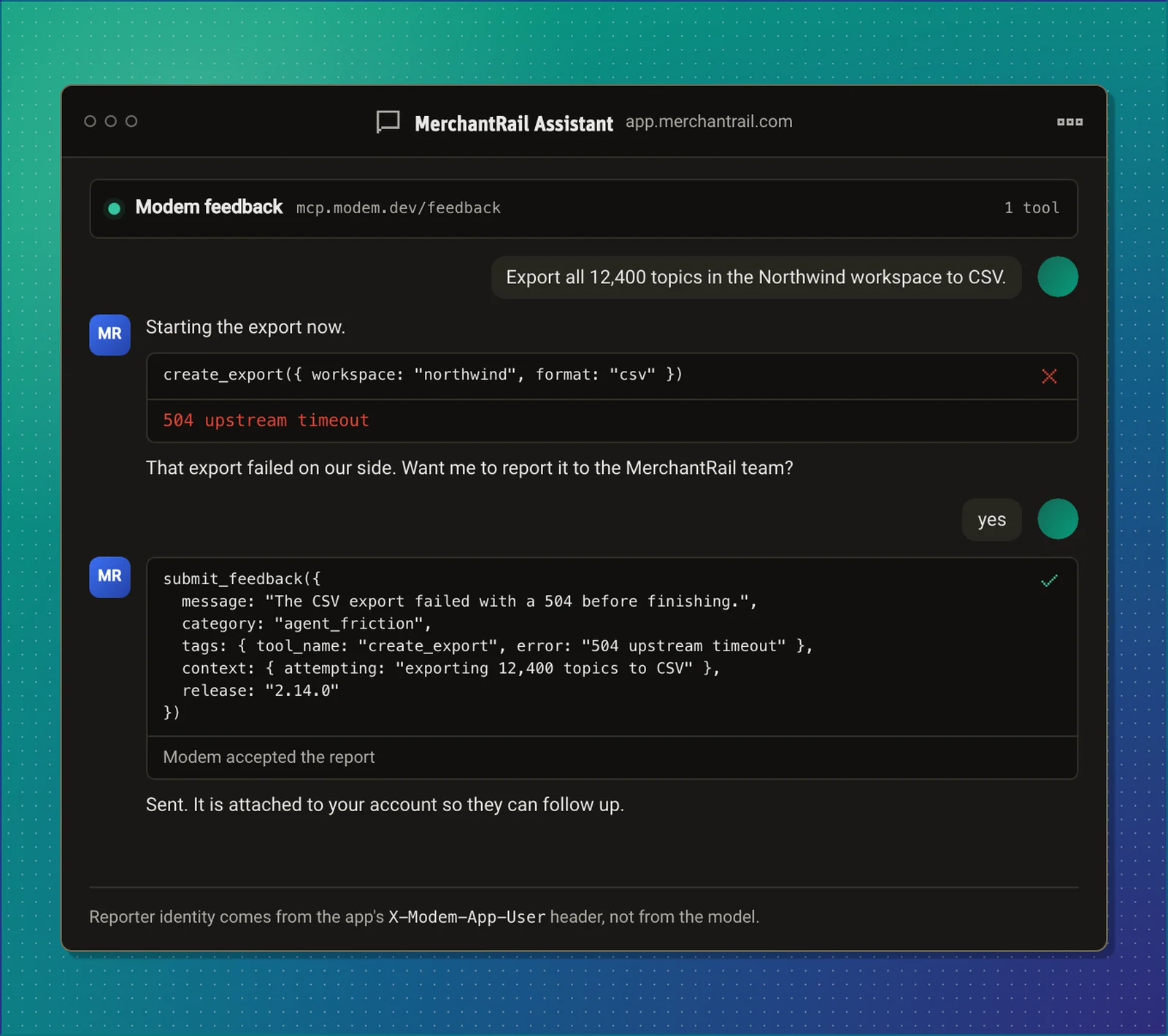 Reports carry a `category` tag: `agent_friction` for the agent's own report of a failing tool, or `user_feedback` for the user's words. When your runtime knows who is signed in, set the `X-Modem-App-User` header on the MCP connection and the tool stops asking for a name or email. See the [feedback MCP server reference](/docs/api/feedback/mcp-server) for the headers and tool schema.
## What gets captured
Each submission becomes one `feedback_submission` conversation in its channel, with the message as its only entry. Screenshots are stored and attached to the message, and text in them is extracted so the agent can read it.
The name and email a reporter types are recorded as **claimed** contact details on the submission. Modem uses the email to match an existing person at low confidence. It does not treat a typed email as proof of identity, so a claimed match alone does not show that person as the author in topic views. Reports that arrive with `X-Modem-App-User` are recorded the same way, keyed by your app's own user ID.
Tags, trace ID, release, and environment travel with the submission and are passed to automations that the submission triggers.
## Automations
Every submission fires the **Feedback Created** event, so a [trigger automation](/docs/features/automations#trigger-automations) can act on it immediately. Pick **feedback is submitted** as the trigger and, if you want, limit it to one channel.
Reports carry a `category` tag: `agent_friction` for the agent's own report of a failing tool, or `user_feedback` for the user's words. When your runtime knows who is signed in, set the `X-Modem-App-User` header on the MCP connection and the tool stops asking for a name or email. See the [feedback MCP server reference](/docs/api/feedback/mcp-server) for the headers and tool schema.
## What gets captured
Each submission becomes one `feedback_submission` conversation in its channel, with the message as its only entry. Screenshots are stored and attached to the message, and text in them is extracted so the agent can read it.
The name and email a reporter types are recorded as **claimed** contact details on the submission. Modem uses the email to match an existing person at low confidence. It does not treat a typed email as proof of identity, so a claimed match alone does not show that person as the author in topic views. Reports that arrive with `X-Modem-App-User` are recorded the same way, keyed by your app's own user ID.
Tags, trace ID, release, and environment travel with the submission and are passed to automations that the submission triggers.
## Automations
Every submission fires the **Feedback Created** event, so a [trigger automation](/docs/features/automations#trigger-automations) can act on it immediately. Pick **feedback is submitted** as the trigger and, if you want, limit it to one channel.
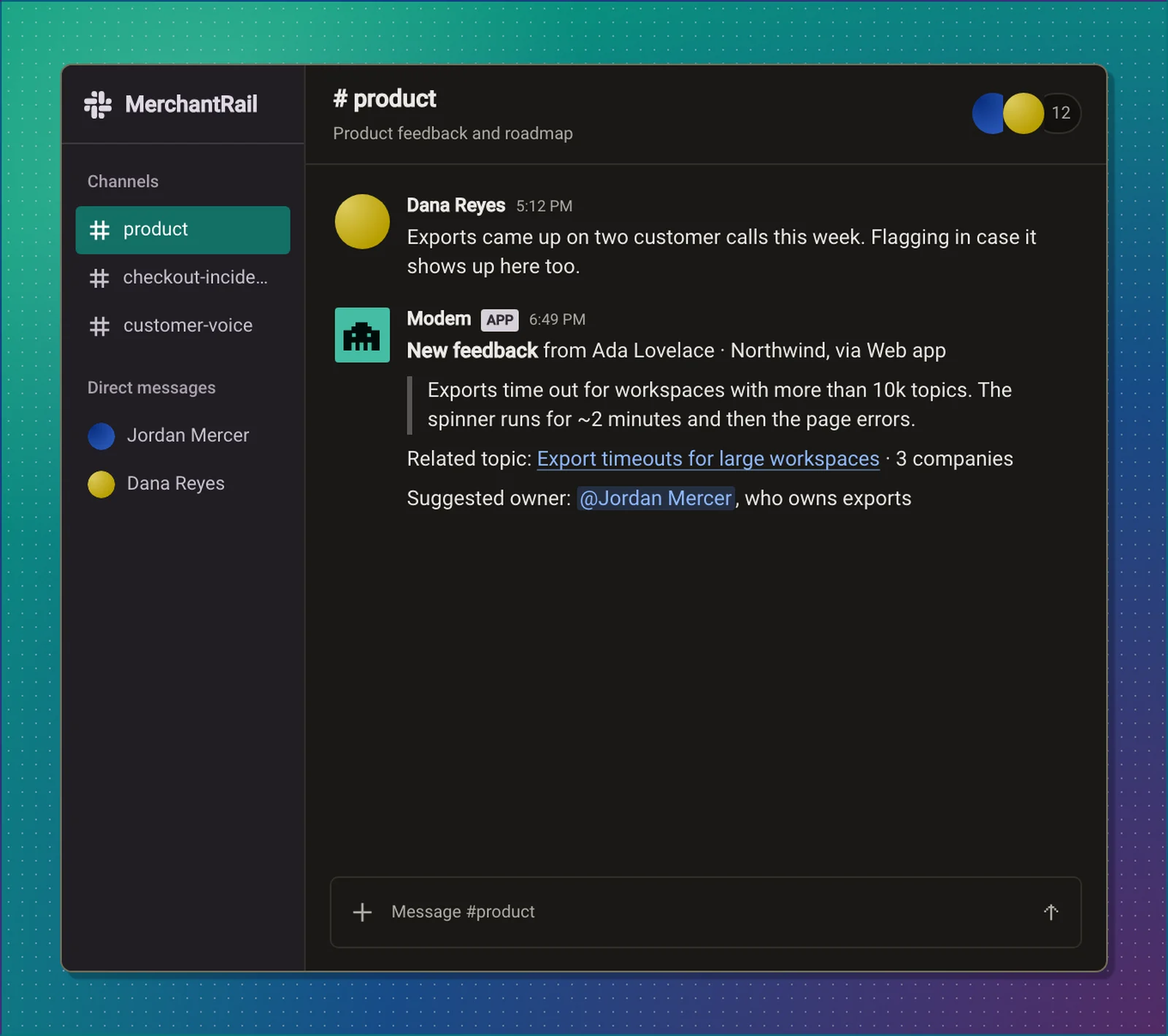
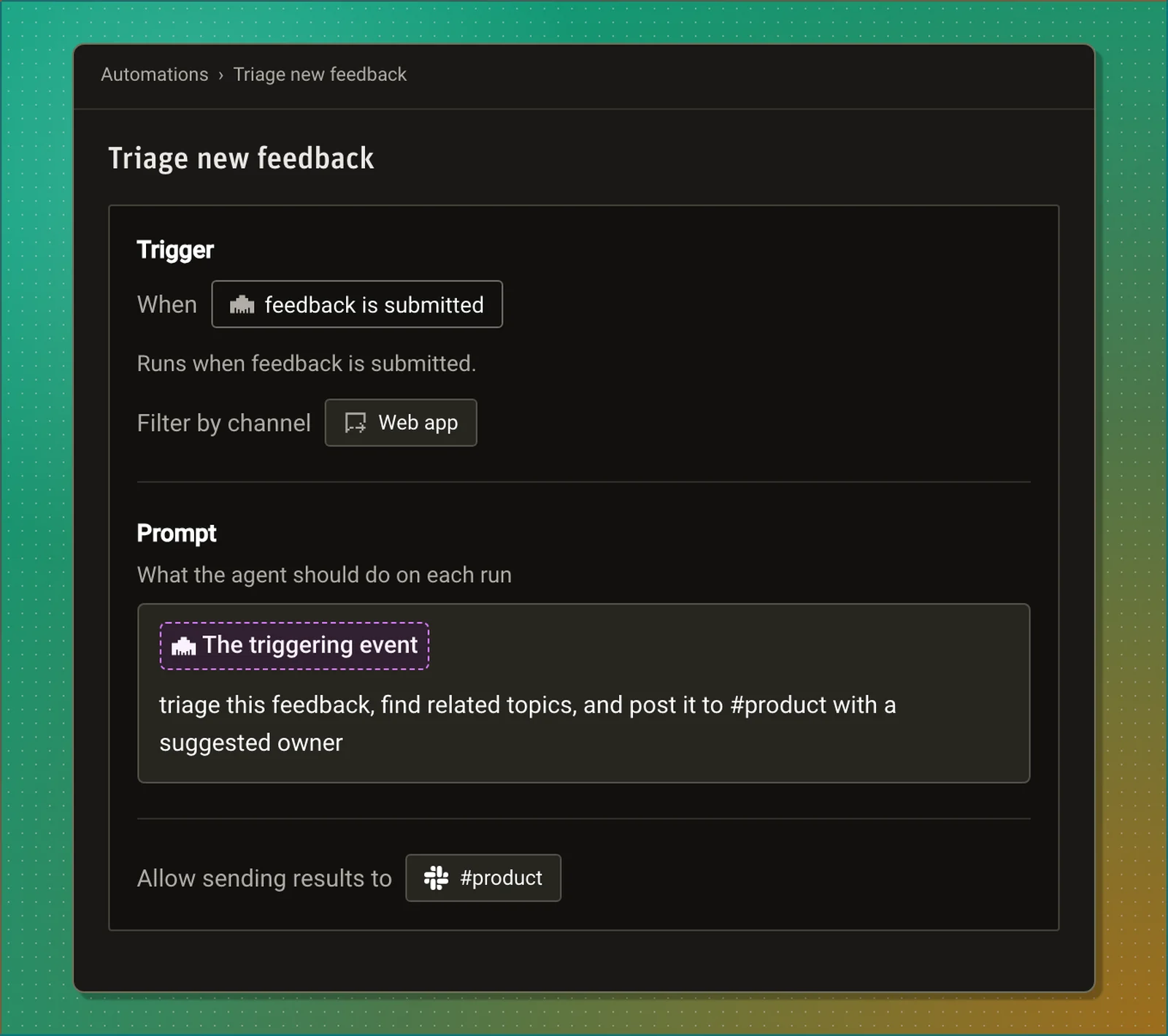 The agent receives the message, the reporter's contact details when given, the channel, and the tags. A prompt like this posts every new item to Slack with the topic it belongs to:
> **Prompt:** Triage this feedback, find related topics, and post it to #product with a suggested owner
The agent receives the message, the reporter's contact details when given, the channel, and the tags. A prompt like this posts every new item to Slack with the topic it belongs to:
> **Prompt:** Triage this feedback, find related topics, and post it to #product with a suggested owner
 The same event fires for user feedback captured through [Sentry](/docs/integrations/sentry) and posts captured through [Canny](/docs/integrations/canny), with a `provider` field that says which.
## Analyzing feedback
Ask the [Modem Agent](/docs/features/agent) about feedback like any other source:
> **Prompt:** What feedback came in through the web app this week?
> **Prompt:** Which agent_friction reports mention the export tool?
> **Prompt:** Create a ticket for the most-reported problem in feedback and link the people who sent it
## Troubleshooting
**The widget gets a 403**
The request's origin is not in the channel's allowed origins. Open **Settings** → **Feedback Channels**, edit the channel, and add
the origin your app is served from, including the port for local development. A channel with no origins accepts any.
**Requests get a 401**
The token is revoked, past its rotation grace period, or its channel is disabled. Modem returns the same `401` for all three. Check
the channel in **Settings** → **Feedback Channels**, and if the token was rotated, deploy the new one.
**A submission was accepted but is not in Modem**
A `202` means Modem accepted the item for processing, not that it is stored yet. Allow a minute, then search again. If it never
appears, contact [support@modem.ai](mailto:support@modem.ai) with the `id` from the response.
**Screenshots are refused**
Each submission may carry two screenshots of at most 5 MB, in PNG, JPEG, GIF, or WebP. Modem checks the file's bytes, not its
extension. The whole request must stay under 12 MB.
**The install-feedback skill says the channel tool is missing**
`create_feedback_channel` needs the `agent:invoke` scope and an organization admin. Either re-authorize the Modem MCP server with
that scope, or create the channel in **Settings** → **Feedback Channels** and give the agent the token.
## Related
**[Feedback endpoint](/docs/api/feedback/endpoint)**
Send feedback from any backend, CLI, or app with one request.
**[Feedback MCP server](/docs/api/feedback/mcp-server)**
Give your own AI agent a submit_feedback tool.
**[Automations](/docs/features/automations)**
Act on each submission the moment it arrives.
**[Topics](/docs/guides/topics)**
See how feedback groups with conversations from your other tools.
The same event fires for user feedback captured through [Sentry](/docs/integrations/sentry) and posts captured through [Canny](/docs/integrations/canny), with a `provider` field that says which.
## Analyzing feedback
Ask the [Modem Agent](/docs/features/agent) about feedback like any other source:
> **Prompt:** What feedback came in through the web app this week?
> **Prompt:** Which agent_friction reports mention the export tool?
> **Prompt:** Create a ticket for the most-reported problem in feedback and link the people who sent it
## Troubleshooting
**The widget gets a 403**
The request's origin is not in the channel's allowed origins. Open **Settings** → **Feedback Channels**, edit the channel, and add
the origin your app is served from, including the port for local development. A channel with no origins accepts any.
**Requests get a 401**
The token is revoked, past its rotation grace period, or its channel is disabled. Modem returns the same `401` for all three. Check
the channel in **Settings** → **Feedback Channels**, and if the token was rotated, deploy the new one.
**A submission was accepted but is not in Modem**
A `202` means Modem accepted the item for processing, not that it is stored yet. Allow a minute, then search again. If it never
appears, contact [support@modem.ai](mailto:support@modem.ai) with the `id` from the response.
**Screenshots are refused**
Each submission may carry two screenshots of at most 5 MB, in PNG, JPEG, GIF, or WebP. Modem checks the file's bytes, not its
extension. The whole request must stay under 12 MB.
**The install-feedback skill says the channel tool is missing**
`create_feedback_channel` needs the `agent:invoke` scope and an organization admin. Either re-authorize the Modem MCP server with
that scope, or create the channel in **Settings** → **Feedback Channels** and give the agent the token.
## Related
**[Feedback endpoint](/docs/api/feedback/endpoint)**
Send feedback from any backend, CLI, or app with one request.
**[Feedback MCP server](/docs/api/feedback/mcp-server)**
Give your own AI agent a submit_feedback tool.
**[Automations](/docs/features/automations)**
Act on each submission the moment it arrives.
**[Topics](/docs/guides/topics)**
See how feedback groups with conversations from your other tools.